Migrate from QuickBooks to Odoo: A Practical Guide for Businesses
Read by: 5

Ankit Gauri
CEO
Ankit Gauri is the Chief Executive Officer of UNCANNY Consulting Services, specializing in Odoo, ERP strategy, and digital transformation. With extensive experience helping businesses streamline operations and accelerate growth, he focuses on delivering scalable technology solutions that align business processes with long-term organizational goals.

 13 Min Read
Published on December 30th 2025

Introduction
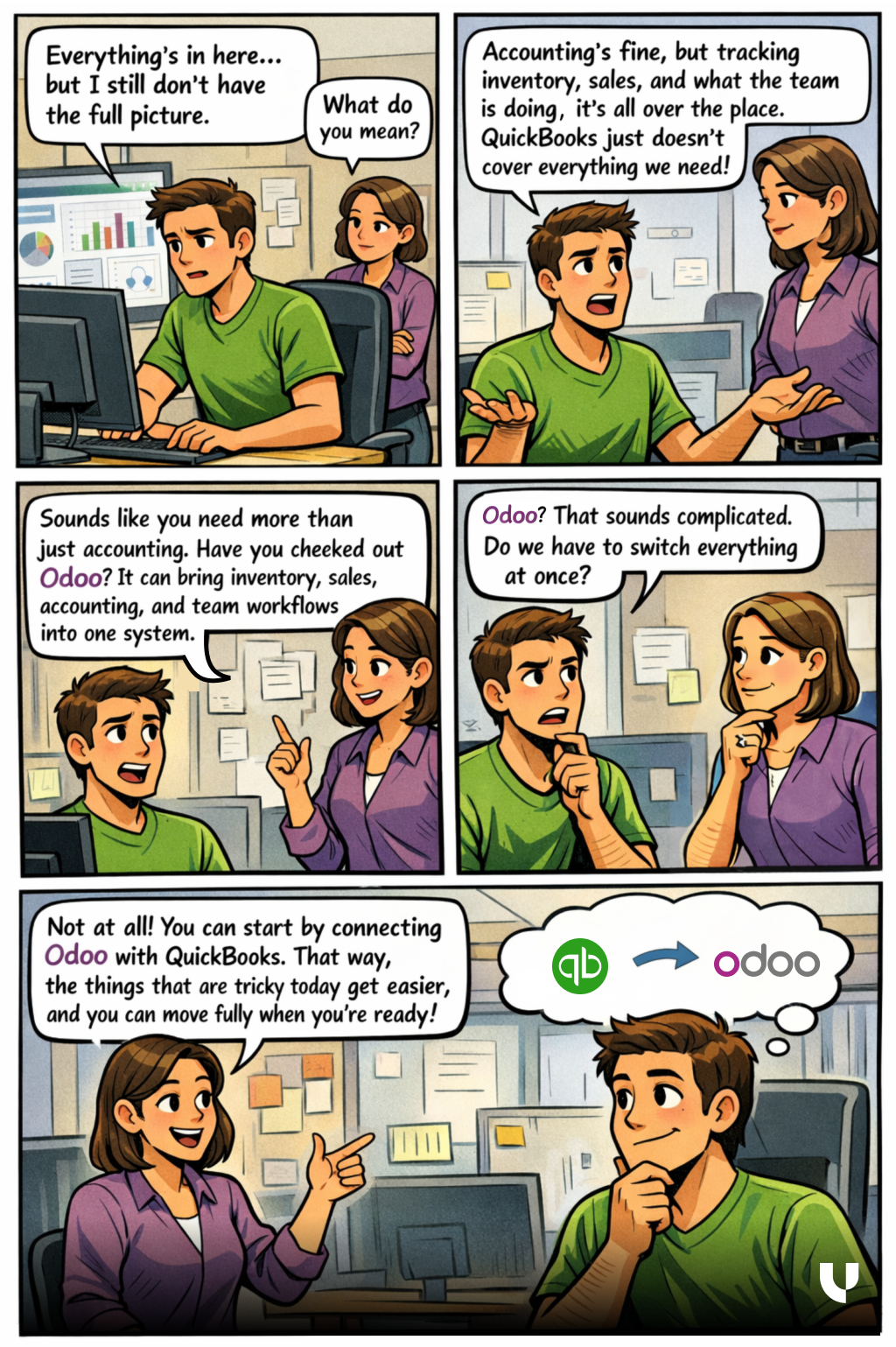
Jake was staring at his QuickBooks dashboard, feeling frustrated. “Everything’s in here… but I still don’t have the full picture.”
Mia, his operations manager, looked up. “What do you mean?”
“I mean, accounting’s fine, but keeping track of inventory, sales, and what the team is doing, it’s all over the place. QuickBooks just doesn’t cover everything we need,” Jake said.
Mia nodded. “Sounds like you need more than just accounting. Have you checked out Odoo? It can bring inventory, sales, accounting, and team workflows into one system.”
Jake raised an eyebrow. “ERP? That sounds complicated. Do we have to switch everything at once?”
“Not at all,” Mia said. “You can start by connecting Odoo with QuickBooks. That way, the things that are tricky today get easier, and you can move fully when you’re ready.”
For growing businesses like Jake’s, this is the point where operations start making sense instead of feeling scattered.
In this blog, we’ll go over:
- Why Odoo might be the smarter long-term choice
- What features it can offer
- Our 5-step QuickBooks to Odoo migration process
- Challenges businesses usually face—and how to handle them
Why Consider Migrating from QuickBooks to Odoo?
We have seen companies start with QuickBooks due to its simplicity and affordability in handling basic accounting tasks. As organizations grow and their operations become increasingly complex, there is a corresponding increase in demand for scalable, integrated, and customizable ERP solutions.
Odoo, an open-source ERP platform, is a perfect alternative that can streamline processes across finance, inventory, sales, and more. We have outlined the key drivers for migrating to Odoo to help you make an informed decision.
Limitations of QuickBooks
QuickBooks excels for small and medium-sized enterprises with straightforward accounting needs, but its limitations become a blocker for businesses to scale. Here are some key constraints of QuickBooks.
| Limitations | Detail |
|---|---|
| Limited Functionality | QuickBooks is primarily an accounting tool and lacks the robust features required for inventory management, CRM, order management, and more. |
| Scalability Issues | With file-size and user-access limitations, QuickBooks can slow operations as your business scales. |
| Reporting Constraints | The reporting feature in QuickBooks offers fewer customization options. Scaling businesses face challenges in monitoring their performance in depth. |
| Increased Dependency on Spreadsheets | Startup businesses often use spreadsheets for tasks like inventory management that QuickBooks can’t handle. This increases the likelihood of human errors, leading to efficiency issues. |
These limitations of QuickBooks can negatively impact your business as your needs become more complex, such as managing multiple locations, diverse sales channels, or international operations.
Understanding Odoo & its benefits
Odoo is an open-source ERP platform designed to offer a new-age modular suite of applications, including accounting, inventory, sales, CRM, e-commerce, and more. Unlike QuickBooks, which is primarily used as an accounting tool by businesses worldwide, Odoo integrates all business functions into a single unified platform, providing significant advantages. Some of them are listed below.
| Benefits | Details |
|---|---|
| Comprehensive Suite | Odoo covers inventory, CRM, accounting, and more, reducing the need to use multiple software solutions. |
| Customization | Businesses can select and customize modules to fit specific needs. |
| Scalability | It can handle large volumes of data and user counts, suitable for all business sizes. |
| Cost-Effectiveness | Odoo offers a free community version and a cost-effective enterprise edition. It potentially reduces the cost of your business growth. |
According to a study by Panorama Consulting Group, 85.7% of organizations reported improved visibility and reporting, and 96.6% experienced increased operational efficiency after migrating to a new ERP solution.
Common Indicators of Migrating from QuickBooks to Odoo
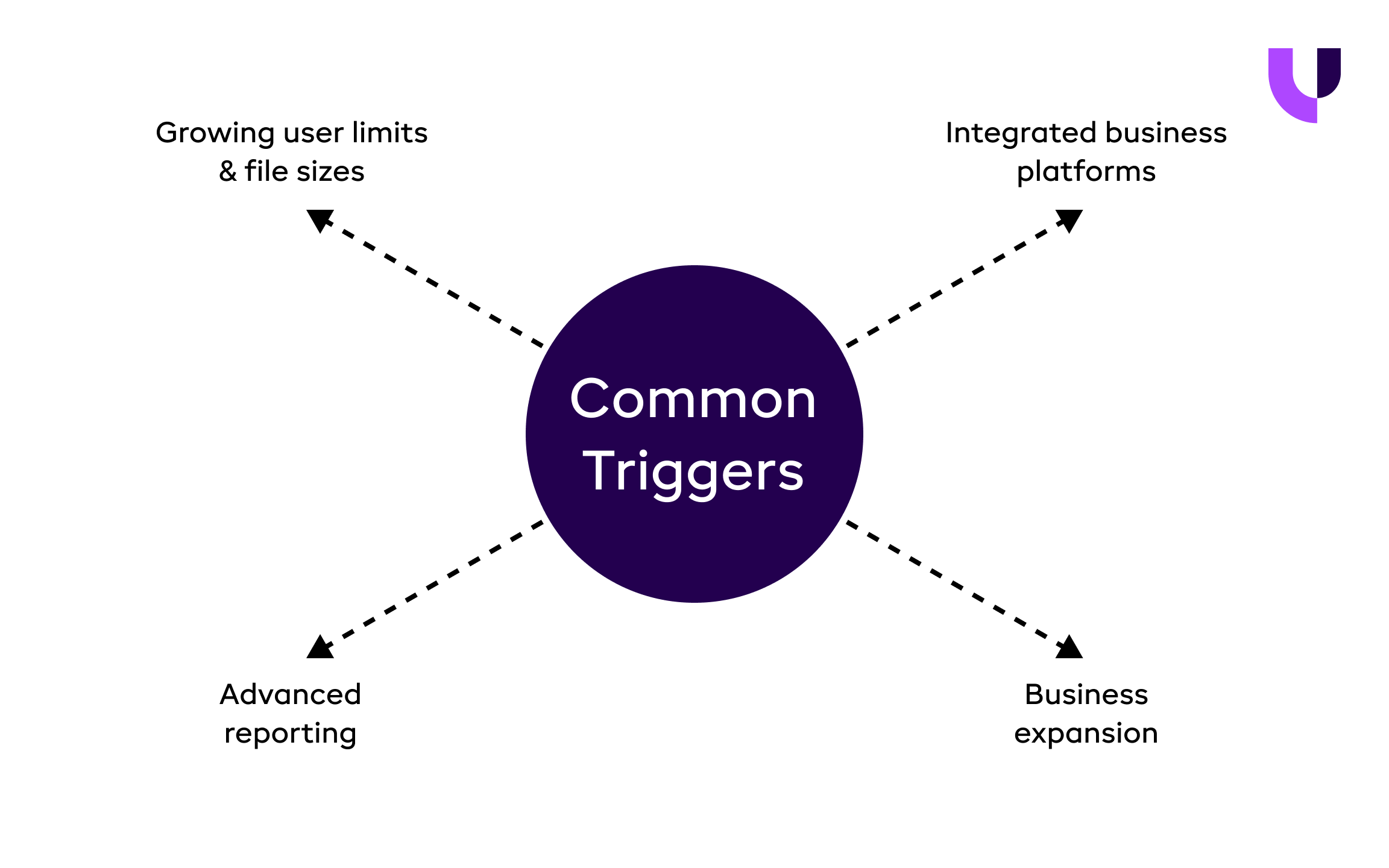
It entirely depends on your business requirements to determine when to migrate from QuickBooks to Odoo. However, here are some standard signals to consider when making a switch.
-
Growing user limits & file sizes
As a startup, you can still use QuickBooks. However, QuickBooks’ user or data volume limits become problematic as your team or transaction volume grows. -
Need to integrate multiple platforms for business operations
Managing a system integrated with multiple third-party tools is difficult as your business grows. Requiring seamless integration of inventory, CRM, order management, and other functionalities can be considered a trigger to migrate. -
Advanced reporting
When your business needs a customizable report that helps you make strategic, data-driven decisions. -
Business expansion
QuickBooks becomes less effective in handling your complex operations when there are multiple currencies and distinct legal entities together.
A 5-Step Proven Method: Migrate from QuickBooks to Odoo Seamlessly
Migrating from QuickBooks to Odoo requires careful consideration and planning for data migration to avoid disruption. We have provided a practical guide below for a smooth transition from QuickBooks to Odoo.
Step 1: Prepare for Migration
Preparation ensures accurate data, team alignment, and minimal disruptions during your QuickBooks to Odoo migration. Think of it as packing for a move: discard junk and prioritize essentials.
A. Assess your needs: Review your QuickBooks setup to determine which data is essential to migrate. Prioritize key data, such as customers, vendors, and transactions, aligning with Odoo features.
- Example: For a retail business looking to migrate to Odoo, you can migrate active customers and summarize historical sales.
B. Data Cleanup: Streamline your migration by removing duplicate data, archiving it, and correcting the errors.
- Example - For the same retail business, you can merge duplicate vendors and archive old payroll records.
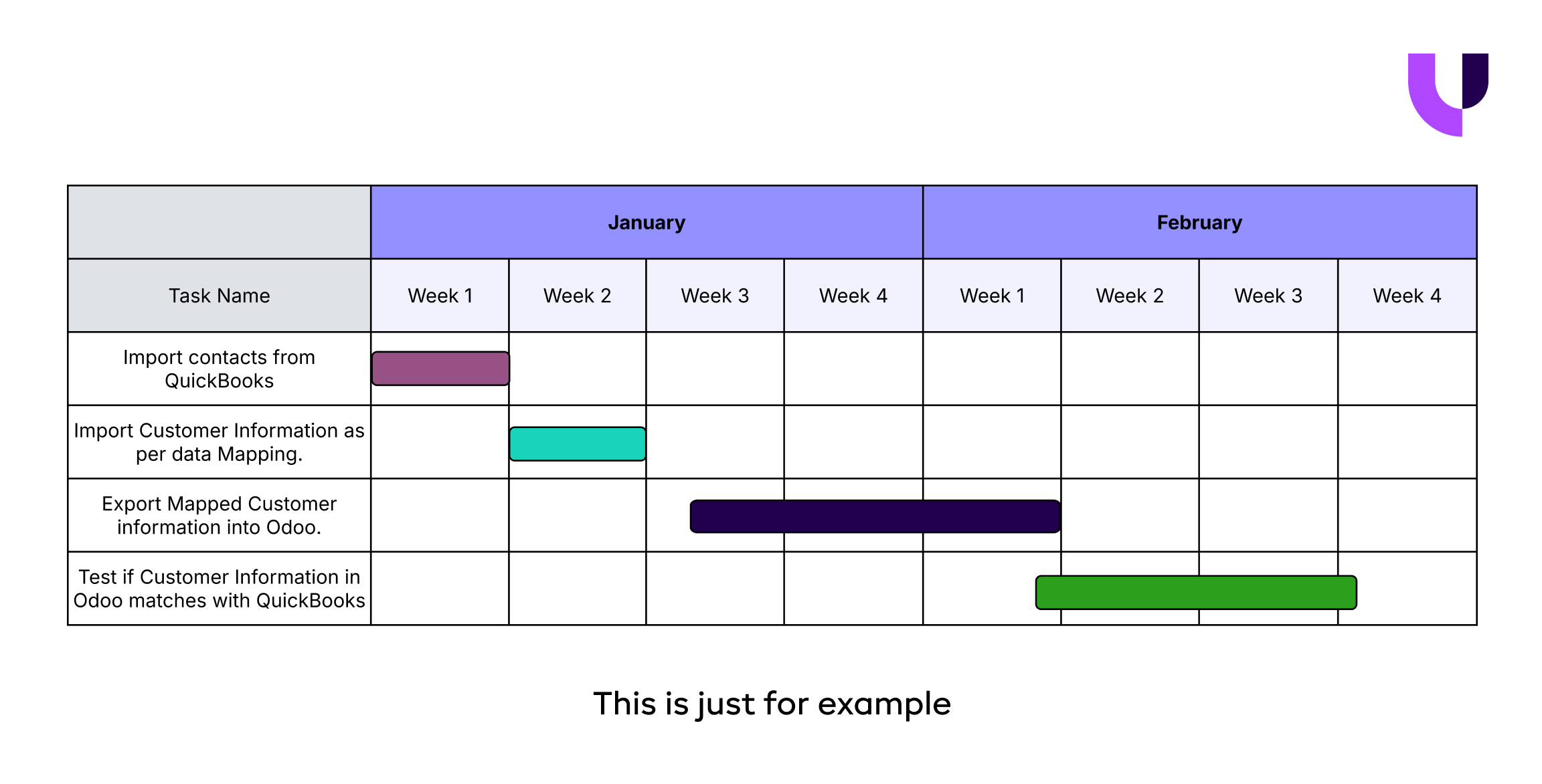
C. Planning the timeline: Allocate resources based on the timeline agreed upon by your team and your Odoo migration consultants.
- Example - For a small e-commerce company, agree on a 4-week timeline: Week 1 for assessment and cleanup, Week 2-3 for testing, and Week 4 for go-live.
Based on our experience, thoroughly preparing for a migration from QuickBooks to Odoo sets the stage for a seamless transition and significantly reduces the risk of errors.
Step 2: Data Export from QuickBooks
Exporting the data from QuickBooks to Odoo is crucial. Focus on categorized exports from QuickBooks to ensure accurate information and avoid overload.
A. Access data export feature: QuickBooks offers a data export feature that allows users to export data based on categories such as customers, vendors, invoices, and more.
- Example - For a service business, exporting the ‘Customer List’ becomes crucial to capture accurate contact details and balances, ensuring inactive accounts are not exported to Odoo.
B. Customize and export: Select the appropriate data range based on your needs and utilize the export functionality available in Settings > Export Data. Usually, the data is downloaded in a zip format.
- Example - Customize invoice export only for the active invoices for the past 12 months.

Step 3: Data Mapping (One of the most critical and important tasks while migrating from QuickBooks to Odoo)
Proper data mapping prevents data loss and ensures your data fits seamlessly into Odoo’s framework. Data mapping is a critical step that directly impacts system reliability post-migration.
- Example - For a retail business, map QuickBooks’ “Item Description” to Odoo’s “Product Name” in the inventory module, ensuring attributes like price and quantity align correctly.
Understanding the data structures: Often, you will find differences between QuickBooks’ and Odoo’s data structures. An expert Odoo migration partner understands the importance of analyzing the data structures of both systems and mapping the corresponding fields.
- Example - For a retail business, map QuickBooks’ “Item Description” to Odoo’s “Product Name” in the inventory module, ensuring attributes like price and quantity align correctly.
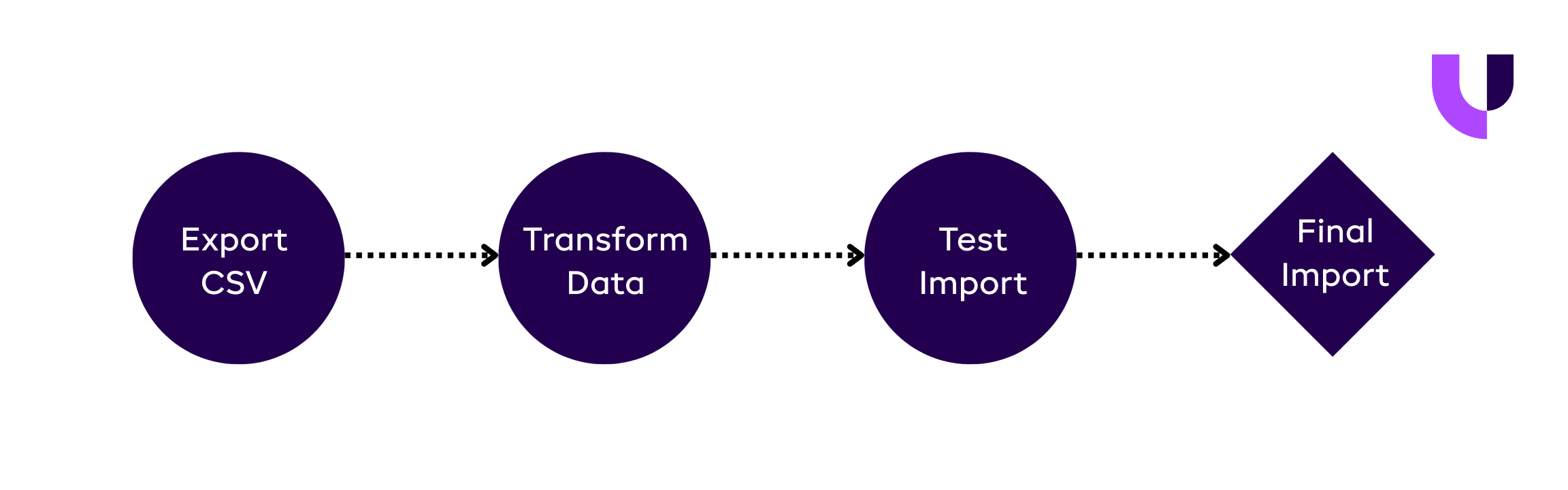
B. Transform data and create import templates: Adjust the data formats to match Odoo’s requirements. Consider converting Excel files into CSV. Additionally, when importing data into Odoo, consider performing a sample run to ensure compatibility.
- Example - Mapping the “Invoice Number” of QuickBooks to the “Reference” of Odoo while importing the Invoice CSV.
Step 4: Import data into Odoo
Importing data into Odoo becomes a crucial step to bring cleaned and mapped information from QuickBooks into the new system.
Use Odoo’s default import feature: Upload your converted CSV files using the default Odoo import tool, following the guidelines shared for each data type.
- Example - If you are running a retail business, upload the exported CSV of customer records into Odoo's sales module, ensuring fields like "Partner Name" and "Email" align with the mapped template discussed in step 3.
B. Validate imports and conduct a test run to check for errors: During import, ensure all data is carefully mapped. Run the system with test data to confirm functionality before full adoption.
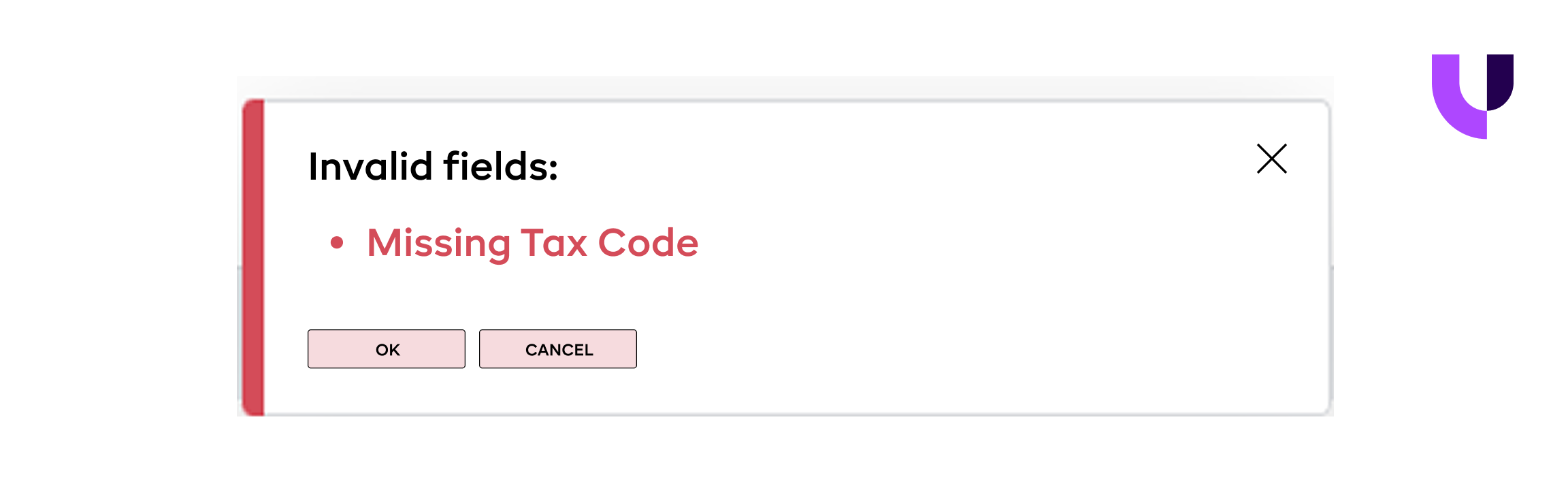
- Example - If you are running a service firm, start by importing 100 test invoices and verifying that the totals and tax codes match those in QuickBooks. You may also try creating a test invoice in Odoo to ensure seamless integration with the accounting reports.
Step 5: Post-Migration Steps
After the data has been carefully migrated from QuickBooks to Odoo, the post-migration phase focuses entirely on verifying the data, equipping your team to adjust to the new workflow with the necessary training, and fine-tuning the system for long-term success.
a. Check for Data Accuracy: Compare your Odoo data with QuickBooks to ensure the imported data is accurate for both financial and transactional histories.
- Example - If you are running an ecommerce business, compare Odoo's "Sales by Customer" report with QuickBooks' equivalent to confirm the amount and date match.
b. Train your team: Provide training on Odoo’s features and interface for a quick adoption.
- Example - For a service firm, it is essential to train the accounting team to become familiar with the accounting module, enabling them to manage ledgers and run financial reports effectively.
c. Monitor and Optimize: Regularly monitor the system to check for errors. Leverage the customization functionality of Odoo to make the necessary adjustments.
- Example - In a retail business, monitoring inventory sync errors in Odoo is vital to streamline reporting and improve the system's efficiency.
Now that you have learned our proven 5-step process for migrating to Odoo, it’s time to understand the business challenges you may face during the migration.
Wish to leverage our expertise in seamless QuickBooks to Odoo migration?
Seamlessly move your data from QuickBooks to Odoo with expert support every step of the way
Get in touch with our Odoo Expert
Found this post helpful? Be sure to share it with your network!


About Author
Ankit Gauri is the Chief Executive Officer of UNCANNY Consulting Services, specializing in Odoo, ERP strategy, and digital transformation. With extensive experience helping businesses streamline operations and accelerate growth, he focuses on delivering scalable technology solutions that align business processes with long-term organizational goals.


Ankit Gauri is the Chief Executive Officer of UNCANNY Consulting Services, specializing in Odoo, ERP strategy, and digital transformation. With extensive experience helping businesses streamline operations and accelerate growth, he focuses on delivering scalable technology solutions that align business processes with long-term organizational goals.